Solution article for office staff | Last updated: July 9, 2026 | Owner: IT Support
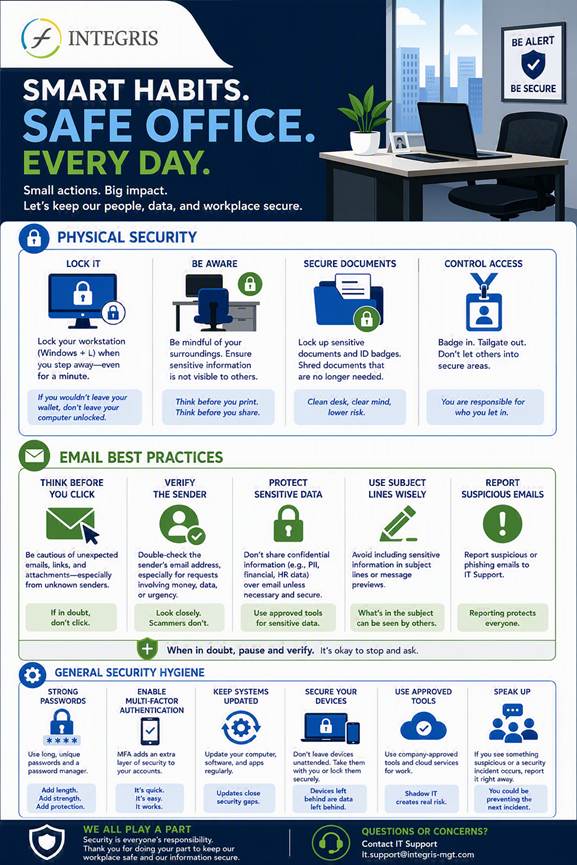
Purpose: This article expands on the attached security infographic and provides practical steps for locking workstations, handling suspicious email, protecting printed documents, using MFA responsibly, keeping a clean desk, and reporting concerns. |
Quick answer
Every staff member should follow three simple rules: protect access, pause before acting, and report concerns early. Small habits such as locking a workstation, checking email senders, collecting printouts immediately, and keeping confidential information secured reduce day-to-day risk for INTEGRIS.
1. Lock your workstation whenever you step away
Why it matters: An unlocked workstation can expose Outlook, Teams, browser sessions, client information, files, and internal tools to anyone nearby.
- Press Windows + L before leaving your desk, meeting room, or shared workspace.
- Do not leave an active session unattended, even for a short conversation, coffee refill, or printer pickup.
- If you see an unattended unlocked workstation, remind the user or contact IT Support if sensitive information is visible.
- When returning, unlock only with your own credentials and never allow another person to use your session.
2. Verify email senders, links, and attachments
Why it matters: Phishing messages are designed to trick users into clicking harmful links, opening malicious attachments, sharing credentials, or approving unusual requests.
- Check the sender name and the full email address before opening links or attachments.
- Be cautious with urgent requests, payment instructions, password/MFA prompts, gift-card requests, unexpected invoices, or messages that pressure immediate action.
- Hover over links before opening them and confirm the destination matches the expected organisation.
- When in doubt, do not reply to the suspicious message. Verify using a known contact method or forward the message to IT Support for review.
3. Collect confidential documents from printers immediately
Why it matters: Printed material can contain client data, banking information, payroll details, forms, internal reports, or other confidential content.
- Pick up print jobs as soon as they are printed.
- Check the output tray before leaving the printer area.
- Do not leave drafts, client forms, or sensitive reports in shared spaces, meeting rooms, or recycling bins.
- If a document was printed by mistake, retrieve it and dispose of it securely according to office procedures.
4. Use passwords and MFA responsibly
Why it matters: Passwords and MFA approvals protect INTEGRIS accounts, email, files, and business applications from unauthorised access.
- Never share passwords, temporary codes, or MFA approval prompts with anyone.
- Approve MFA only when you personally initiated the sign-in.
- Use unique passwords for work accounts and avoid reusing personal passwords.
- Report unexpected MFA prompts immediately because they may indicate someone is attempting to access your account.
5. Maintain a clean desk and secure workspace
Why it matters: A clean desk reduces accidental information disclosure to visitors, vendors, other staff, or cleaning personnel.
- Lock up confidential paperwork when it is not in use.
- Turn over or store documents before leaving a desk or meeting room.
- Avoid writing passwords, client details, or sensitive notes on sticky notes or visible paper.
- At the end of the day, clear desks of confidential information and secure devices.
6. Report security concerns promptly
Why it matters: Early reporting helps IT contain issues before they affect more users, systems, or data.
- Report suspicious email, unexpected MFA prompts, lost devices, possible data exposure, unusual computer behaviour, or accidental disclosure.
- Include screenshots, the sender address, affected device, time observed, and what action was taken.
- Do not attempt to investigate suspicious links or attachments yourself.
- Contact IT Support at it.support@integris-mgt.com.
Before you act on an email: 10-second checklist
Check | Ask yourself | Action |
Sender | Does the display name match the actual email address? | If not, pause and verify. |
Request | Is the request unusual, urgent, financial, or credential-related? | Verify through a known contact method. |
Link | Does the link destination match the expected site? | Do not open suspicious links. |
Attachment | Were you expecting the file? | Ask the sender or IT before opening. |
MFA | Did you initiate the sign-in? | Deny and report unexpected prompts. |
Frequently asked questions
Should I reply to a suspicious email?
No. Do not reply, open attachments, or select links. Forward or report the message to IT Support for review.
What if the message appears to come from someone I know?
Still verify if the request is unusual, urgent, or asks for payment, credentials, documents, or confidential information.
What if I clicked a suspicious link?
Stop interacting with the page, do not enter credentials, and contact IT Support immediately with the details.
What if I forgot to collect a confidential printout?
Return to the printer immediately. If the document cannot be found or may have been seen by others, report it to IT Support or your manager.
Can I approve MFA if I am not signing in?
No. Unexpected MFA prompts should be denied and reported.
Related references and support
Internal references used to prepare this article include the INTEGRIS IT Support FAQ and the Acceptable Use of Information Technology Assets Policy. External references used for general awareness guidance include CISA phishing guidance and Microsoft documentation on locking a Windows workstation.
External reading: CISA - Teach Employees to Avoid Phishing | Microsoft Learn - LockWorkStation function
Was this article helpful?
That’s Great!
Thank you for your feedback
Sorry! We couldn't be helpful
Thank you for your feedback
Feedback sent
We appreciate your effort and will try to fix the article