Attendance Calendar
When booking time off, the attendance calendar operates in a similar fashion as reserving a meeting room.
To use the attendance calendar, open Outlook from your computer or sign in to Outlook on the web. Schedule a new meeting and add the room to the meeting like you would when inviting other employees or customers. You've now reserved it.
- Open Outlook on your computer.
- On the Home tab, choose New items, and then select Meeting from the drop-down list.
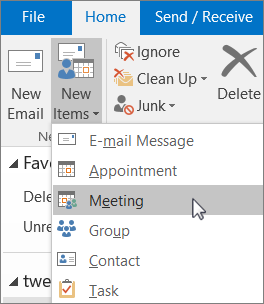
Or, from your Calendar, just select New Meeting.
- In the Required field, type ~MR-Attendance Calendar.
Or, select Required, then double-click ~MR-Attendance Calendar from the list. Then select OK.
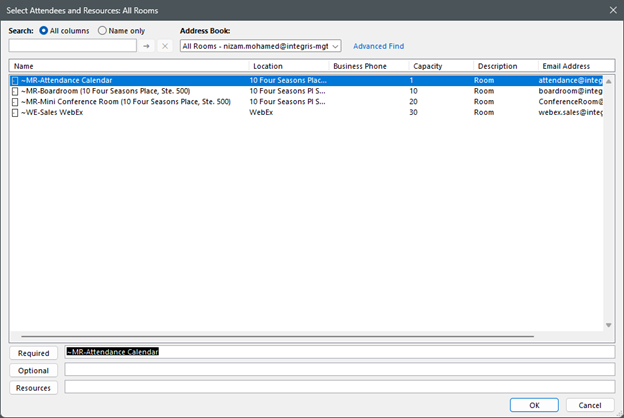
- In the Optional field, enter the email addresses of your supervisor and any other staff who should be advised of your absence.
- In the Title line, type the purpose of the reservation or meeting.
- Change the Location value or leave as is.
- Change the Start time and End time. Or, select All day. To make the meeting or reservation repeat, select Recurrence at the top.
- Type a message describing the purpose and attach any files if needed.
- Click Send
Was this article helpful?
That’s Great!
Thank you for your feedback
Sorry! We couldn't be helpful
Thank you for your feedback
Feedback sent
We appreciate your effort and will try to fix the article